Setup Guide

Follow these steps to get the bot running on your Discord server. Takes about 5 minutes.

This guide may not be fully up to date. Last updated: March 2026
1

Log in with Discord

Click "Get Started with Discord" on the home page. This creates your account using your Discord identity.
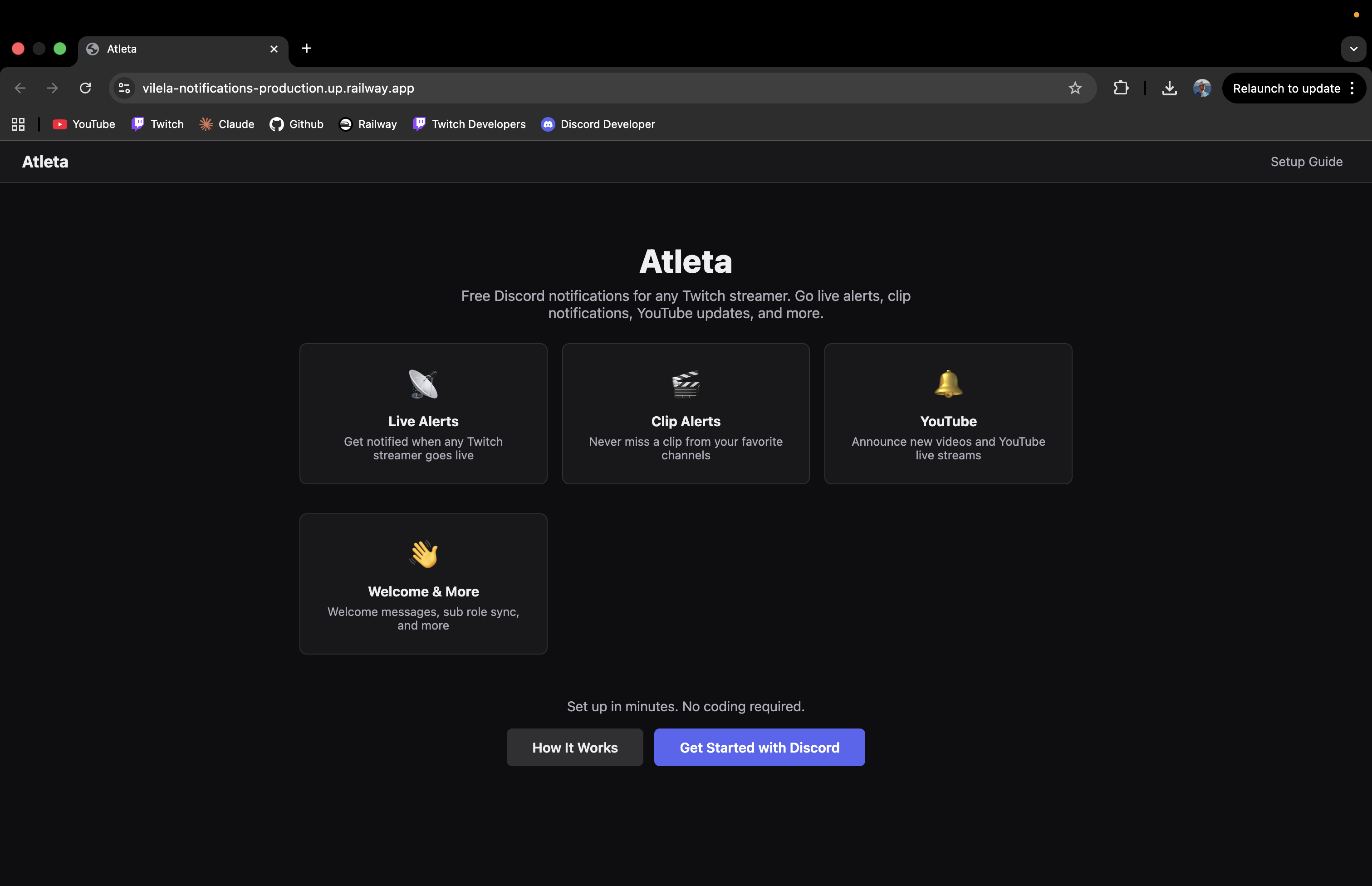
Atleta home page with Get Started with Discord button

You'll be redirected to Discord to authorize. The bot only reads your username and avatar.
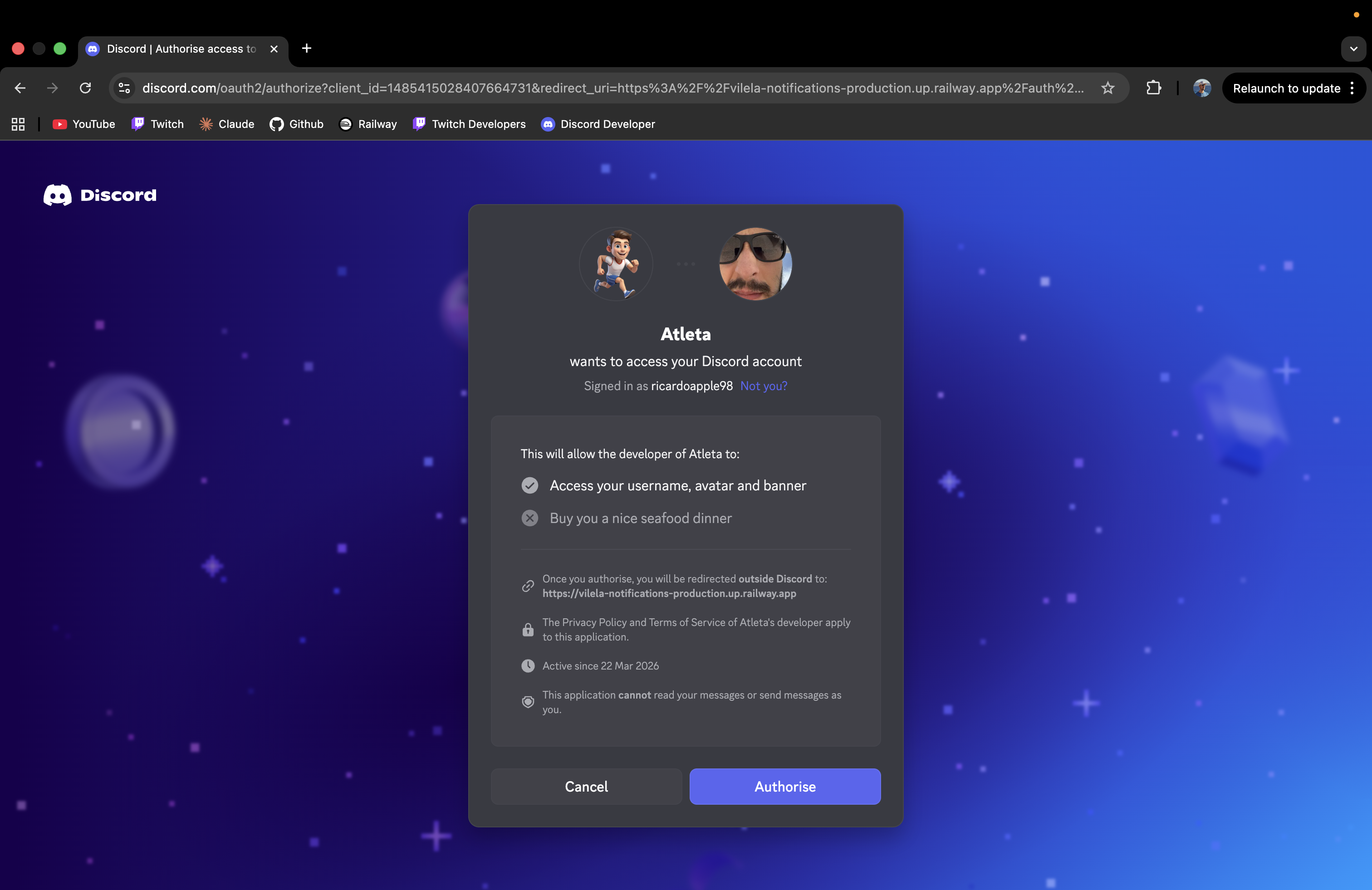
Discord authorization page
Click "Authorize" to continue. No special permissions are needed — the bot only reads your public profile.
2

Link Your Twitch Account (Optional)

From the dashboard, click "Link Twitch Account" if you want to enable subscriber role sync for your own channel. This step is optional — you can watch any Twitch channel without linking.

📸
Dashboard — "Link Twitch Account" button
Screenshot coming soon
3

Add the Bot to Your Discord Server

Click "+ Add Bot to Server" from the dashboard. This opens Discord's authorization page in a new tab.
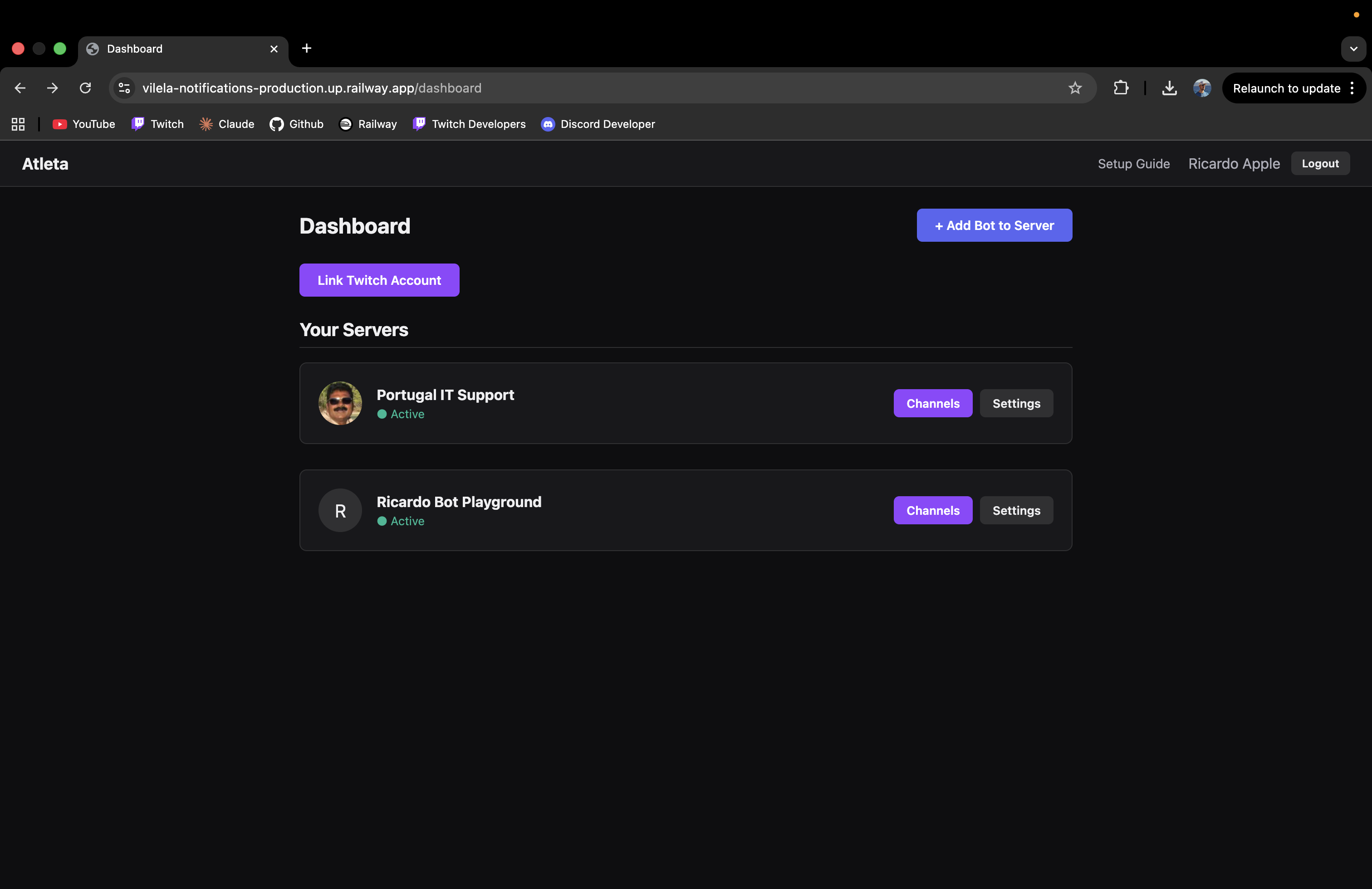
Dashboard with Add Bot to Server button

Select which server you want to add the bot to and click "Continue".
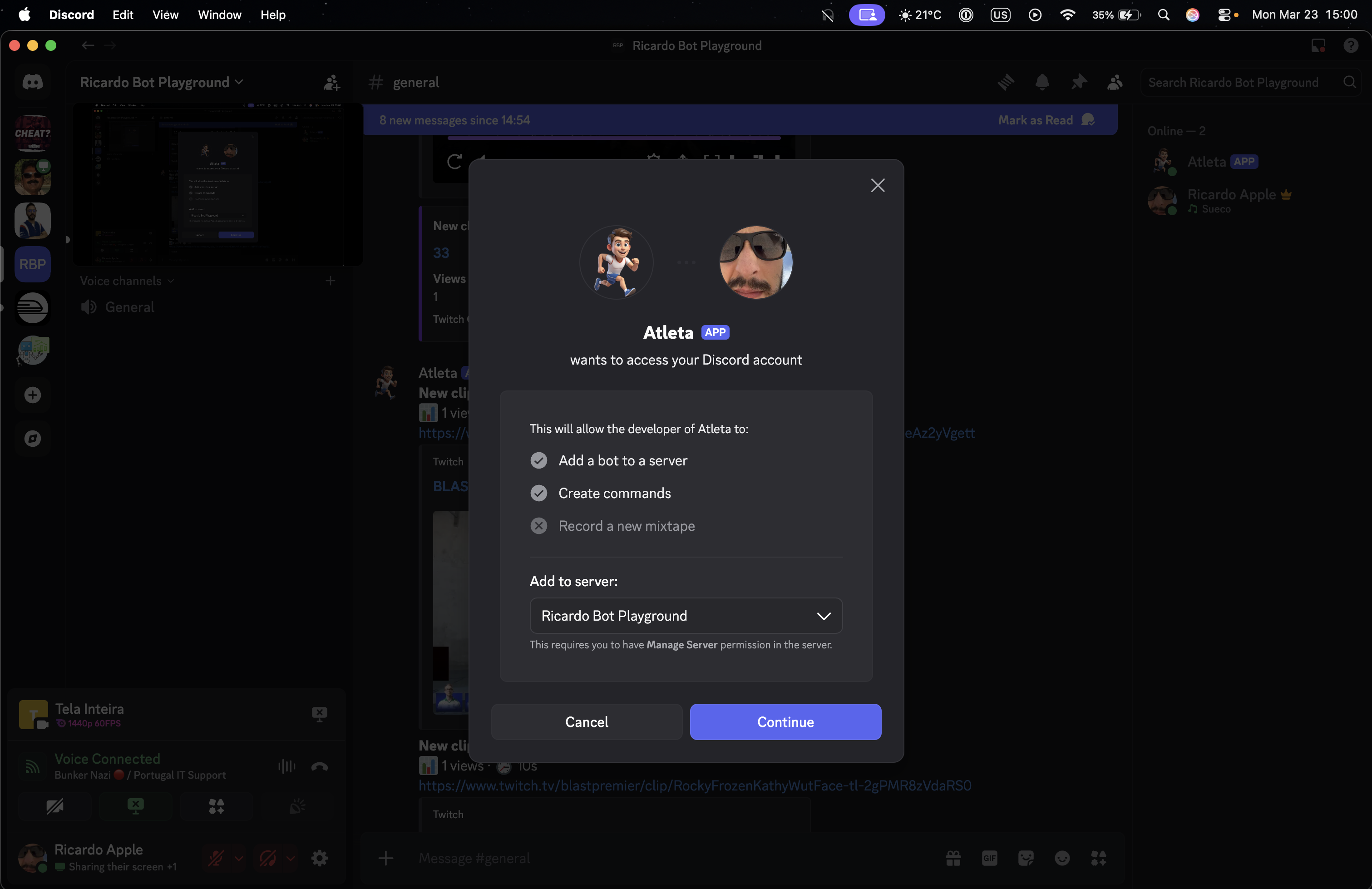
Discord — Select a server to add the bot
  • You need Manage Server permission in the Discord server
  • The bot will request permissions to send messages, embed links, and manage roles
  • After authorizing, go back to the dashboard
4

Claim Your Server

After adding the bot, your server will appear under "Available Servers" on the dashboard. Click "Claim" to link it to your account.
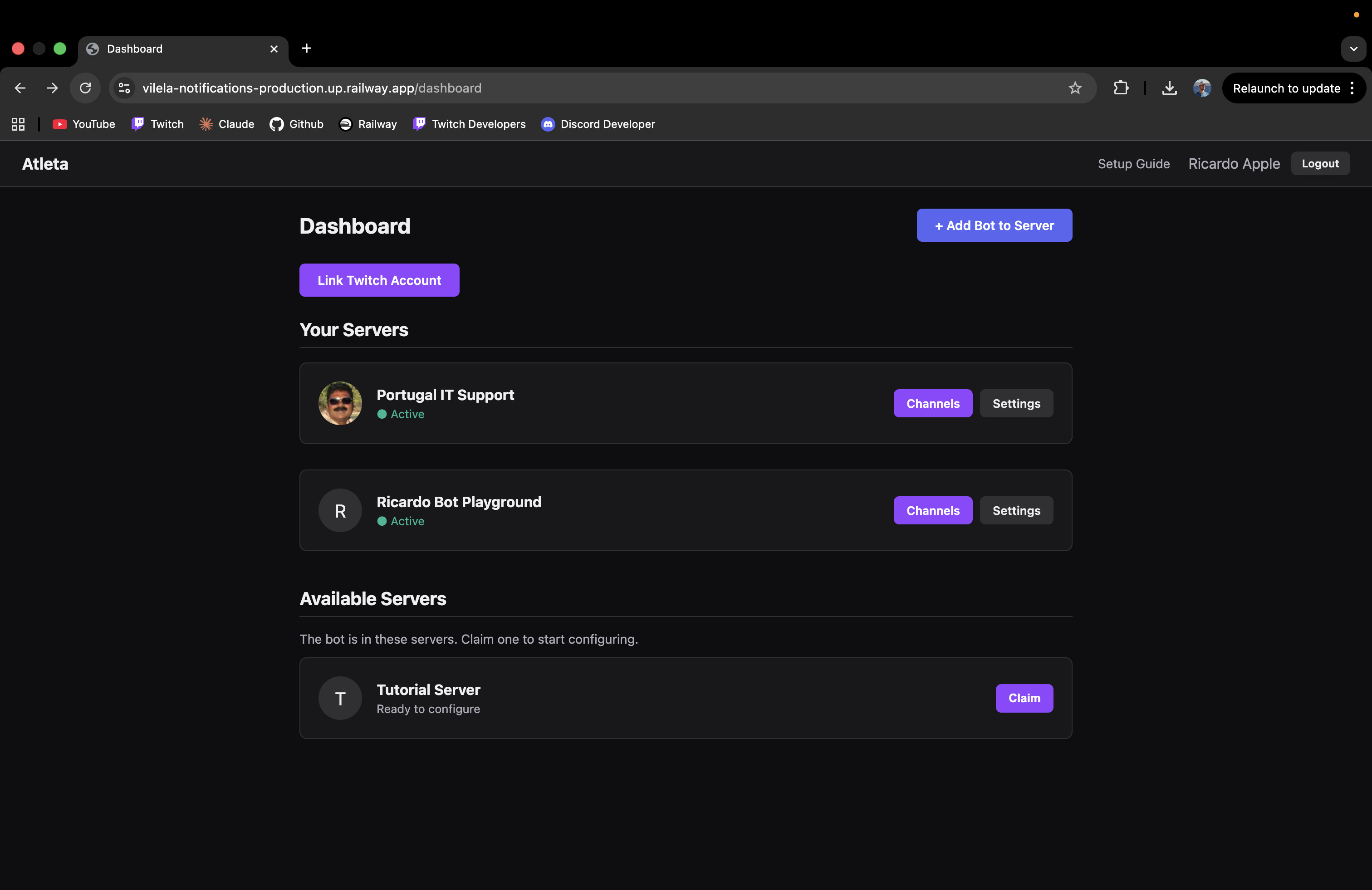
Dashboard showing Available Servers with Claim button

Once claimed, you'll see the server settings page where you can configure welcome messages, subscriber role sync, and more.
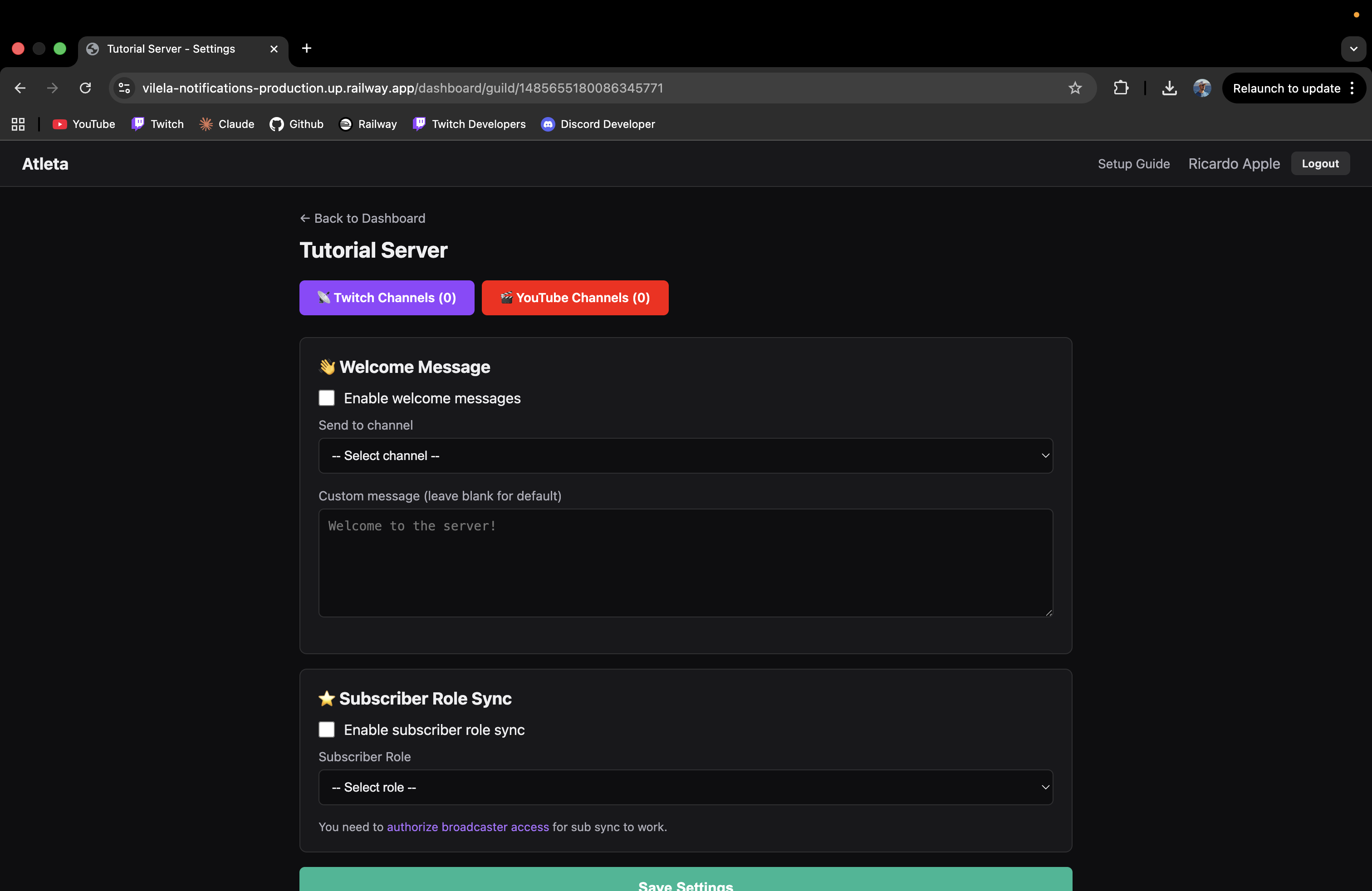
Server settings page with Twitch Channels and YouTube Channels buttons
Each server can only be claimed by one user. If someone else has already set up the bot on that server, you won't see it in the list.
5

Add Twitch Channels to Watch

Click the "Twitch Channels" button on your server to manage which Twitch streamers you want notifications for.
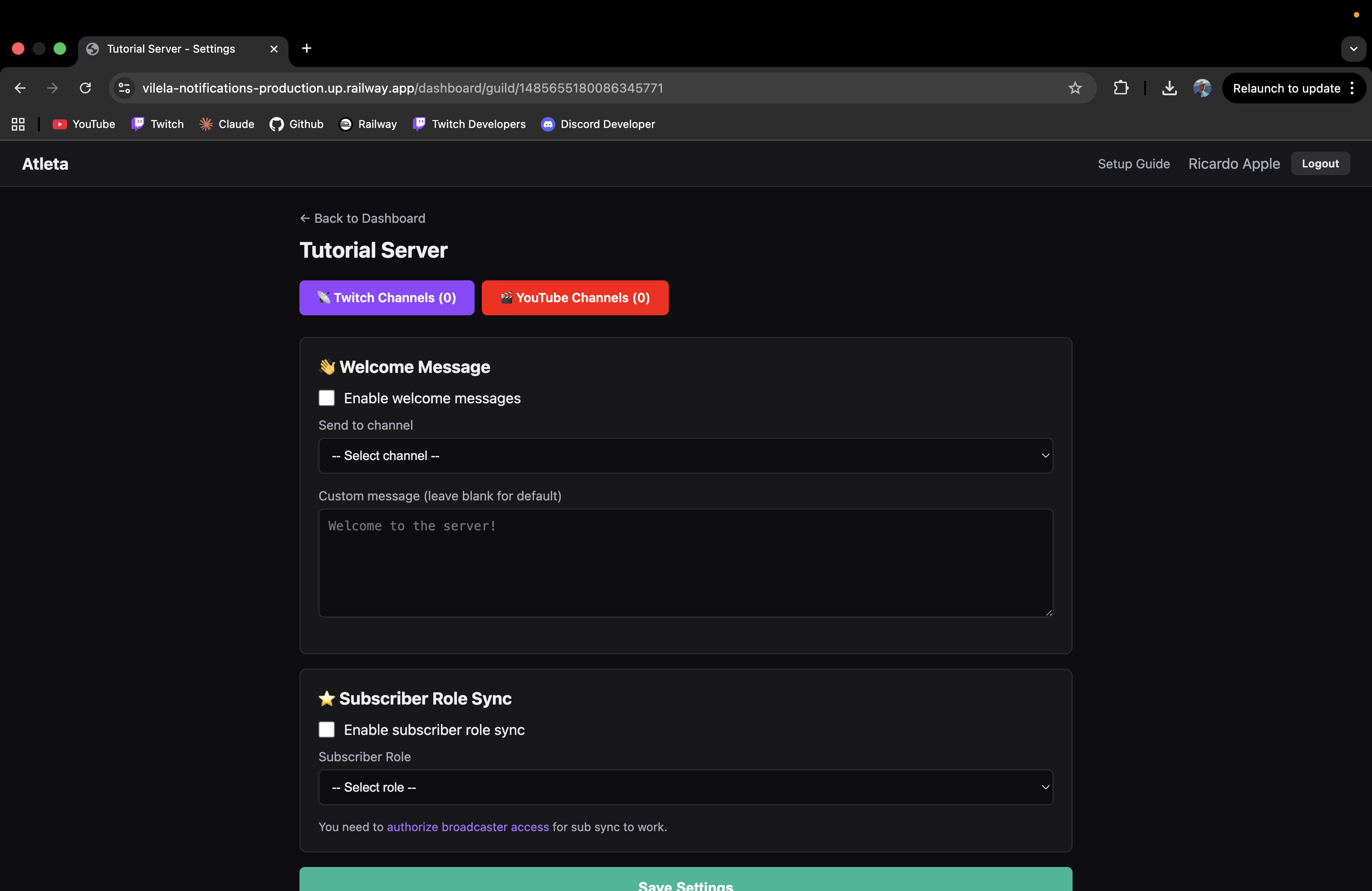
Server settings showing Twitch Channels and YouTube Channels buttons

You'll see the Twitch Channels page. Enter any Twitch username and choose which Discord channels should receive live and clip notifications.
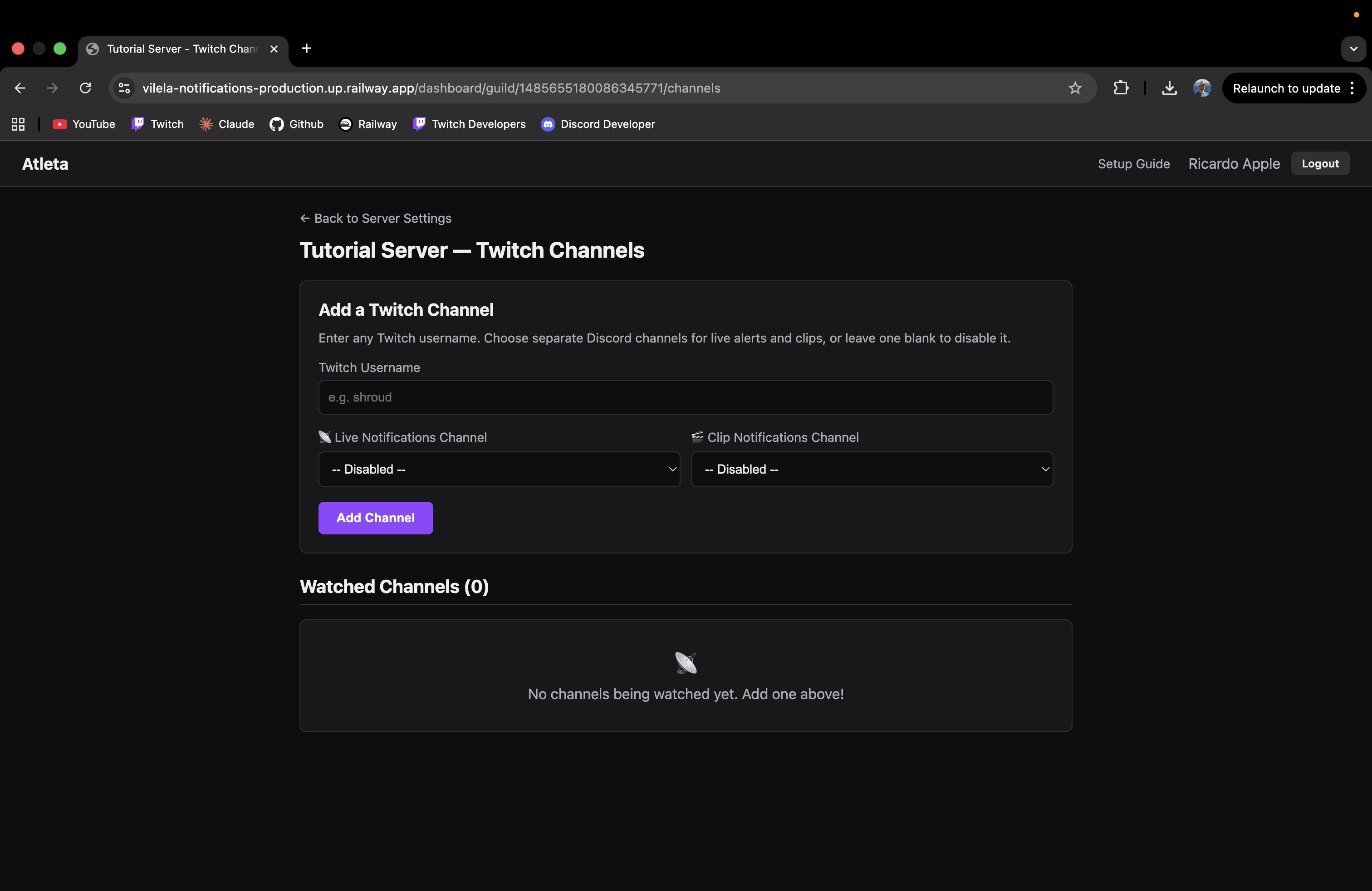
Twitch Channels page — empty state with add form

Fill in a Twitch username and select the notification channels. You can set different Discord channels for live alerts and clips, or leave one disabled.
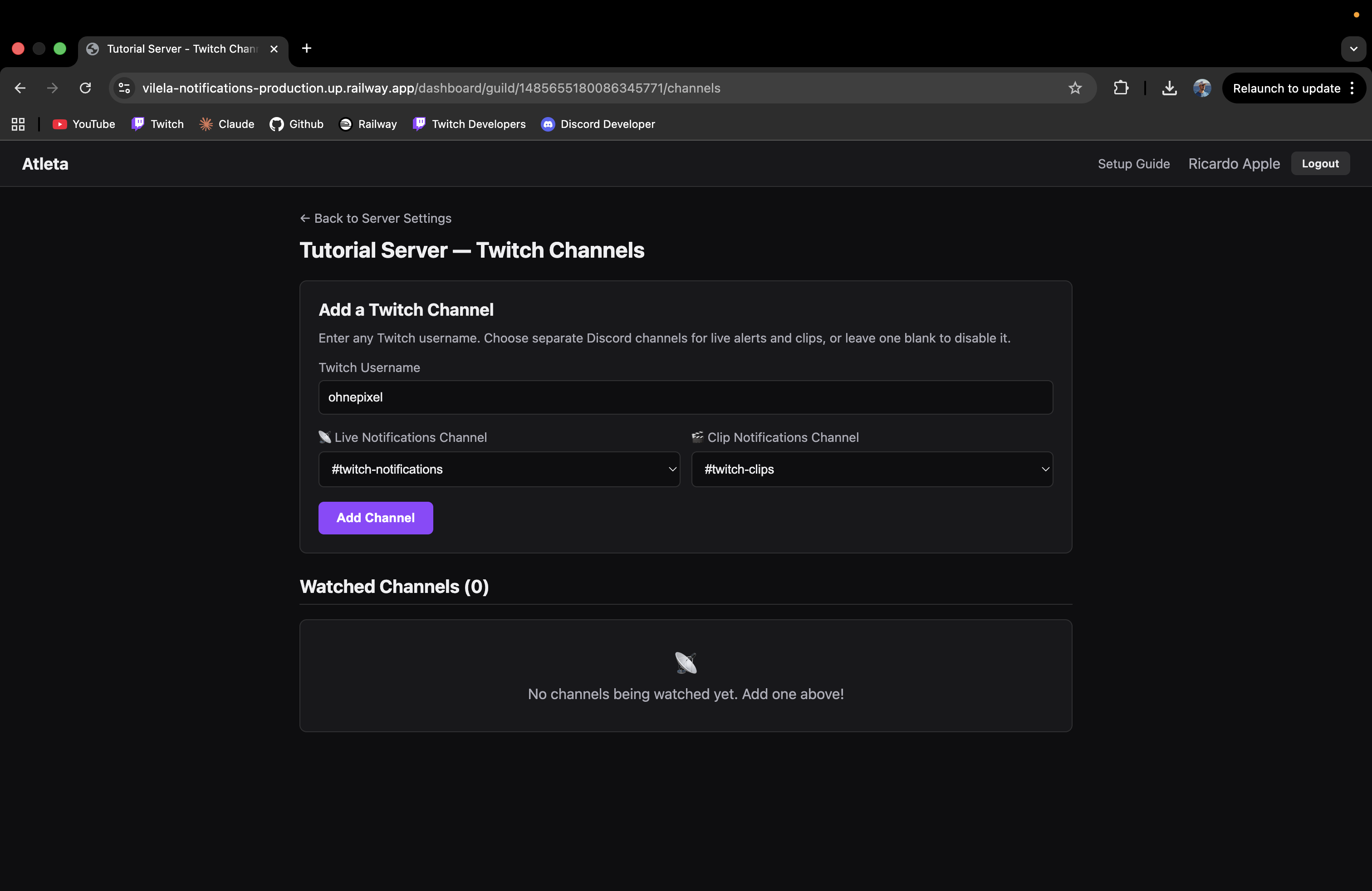
Filling in a Twitch username with notification channels selected

Click "Add Channel" and you're done! The channel will appear in your watched list and notifications will start within a minute.
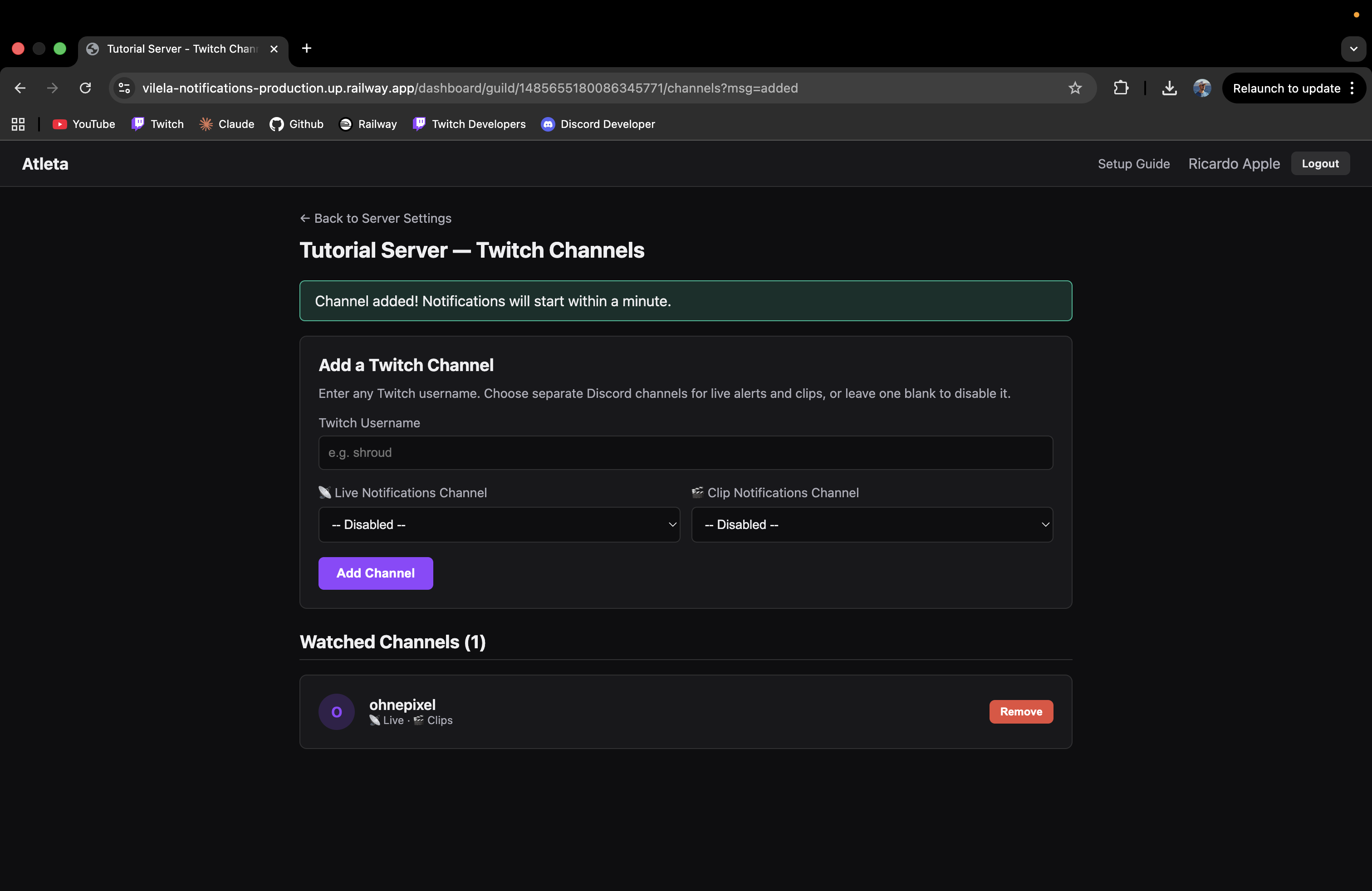
Channel added successfully with watched channels list showing
6

Add YouTube Channels (Optional)

Click the "YouTube" tab on your server settings to add YouTube channels. You can enter a @username or Channel ID (starts with UC).

YouTube tab — Add a YouTube channel form

Choose which Discord channels should receive video/shorts notifications and live notifications, then click "Add Channel".

YouTube channel added to watched list
Video/shorts notifications use the free YouTube RSS feed and don't need an API key. Live detection requires a YouTube Data API key.
7

Configure Welcome Messages (Optional)

In your server "Settings" page, enable the welcome message feature:
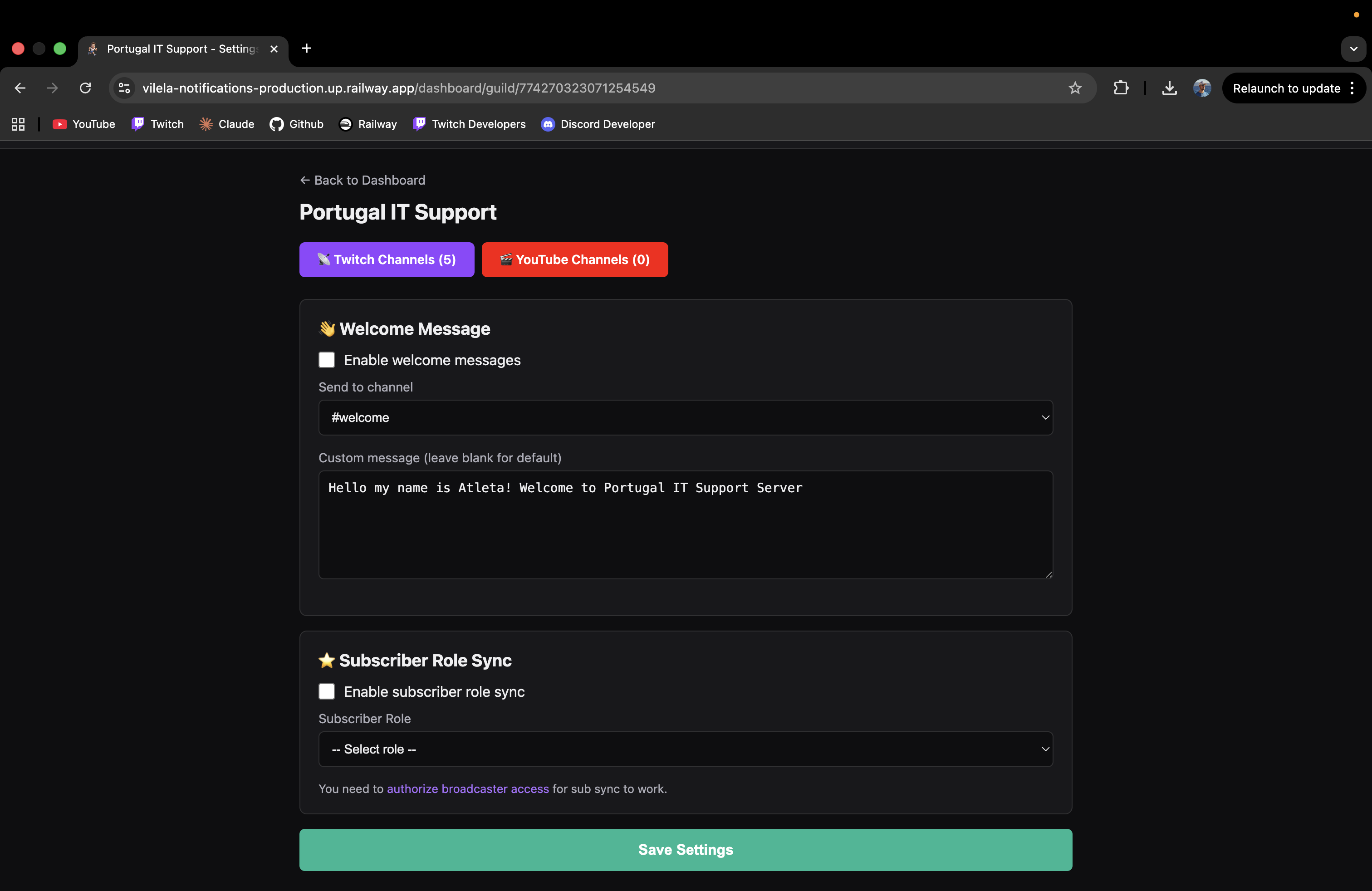
  • Toggle on Welcome Messages
  • Select which channel to send welcome messages to
  • Optionally write a custom welcome message
Server Settings showing Welcome Message configuration
8

Enable Subscriber Role Sync (Optional)

This feature automatically gives a Discord role to your Twitch subscribers:

1. First, link your Twitch account and click "Enable Sub Sync" from the dashboard — this authorizes the bot to read your subscriber list.
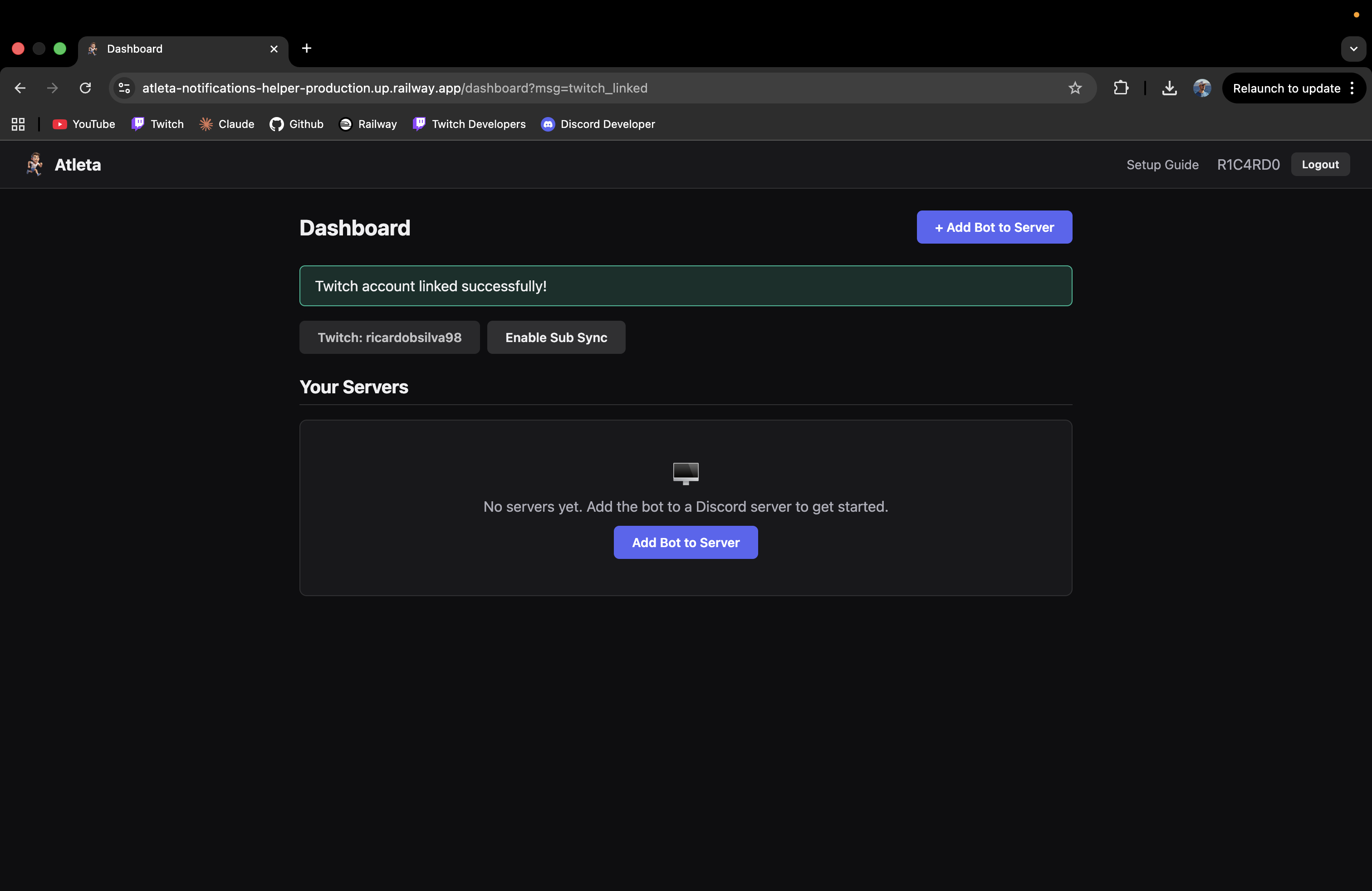
Dashboard showing Enable Sub Sync button

2. In your Discord server, go to Server Settings → Roles → Atleta and make sure the Administrator permission is enabled.
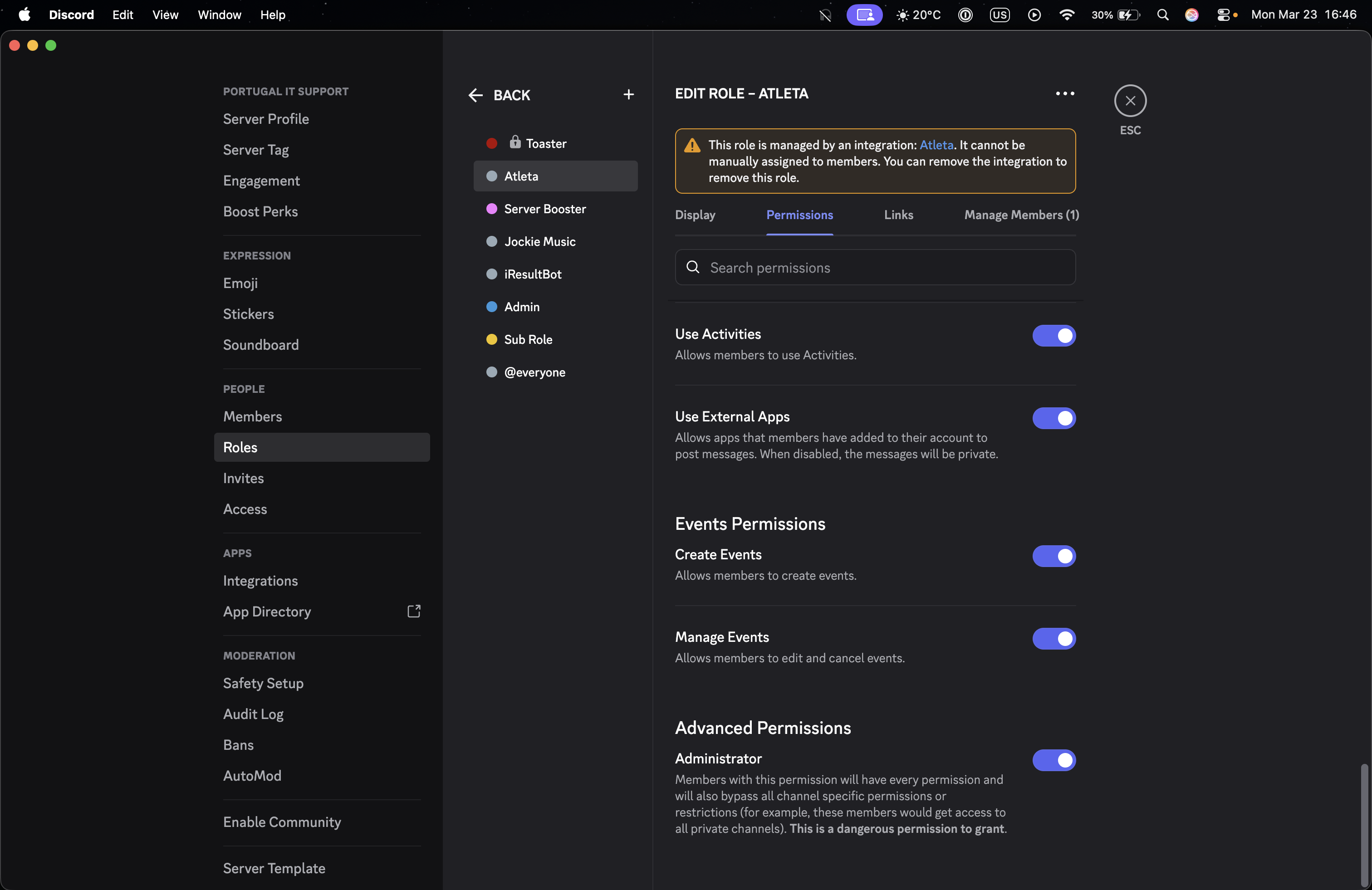
Atleta role with Administrator permission enabled

3. Make sure the Atleta role is above the subscriber role in the roles list. If it's not, drag it above — the bot can only assign roles lower than its own.
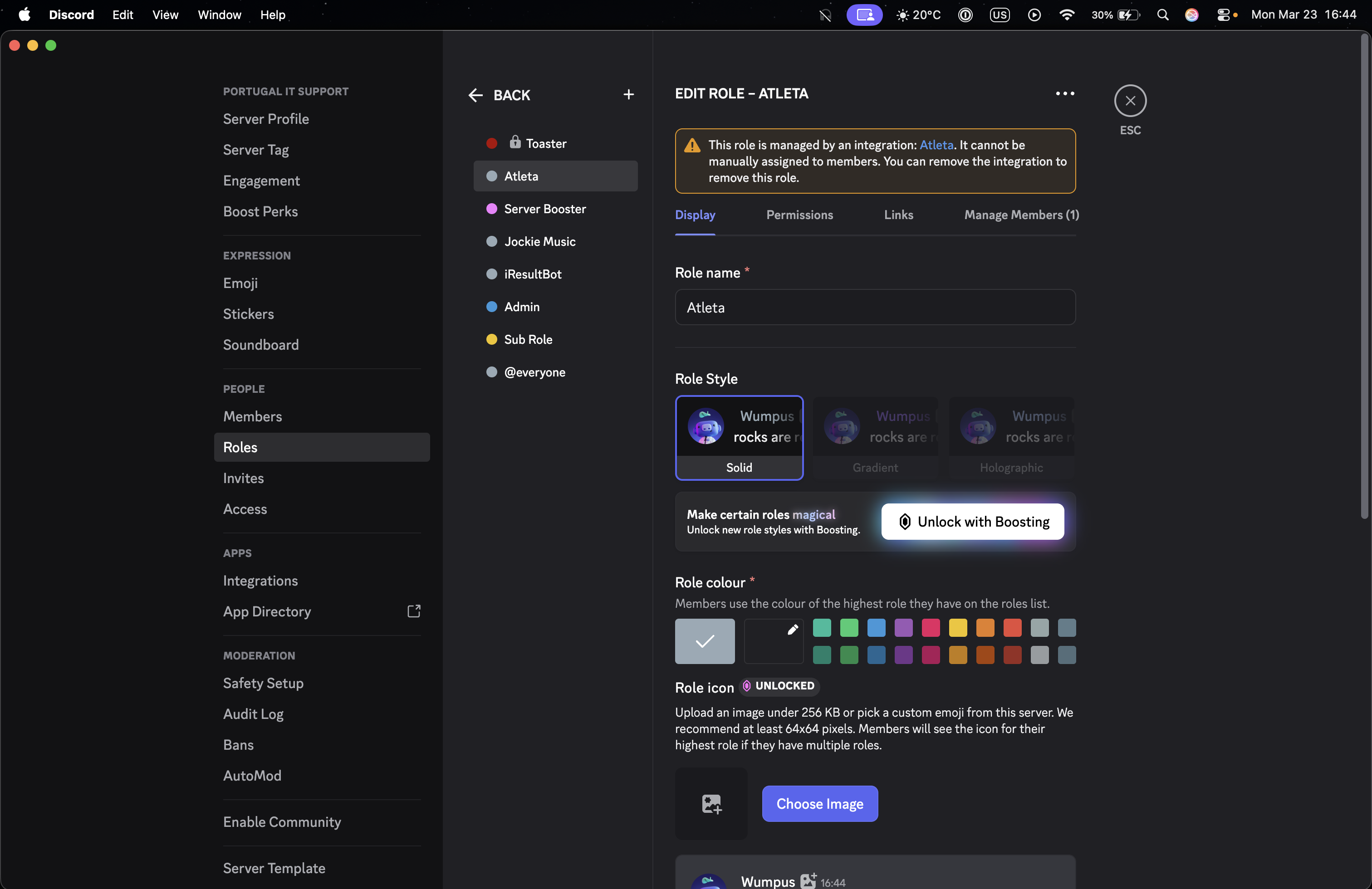
Atleta role positioned above Sub Role in the roles list

4. In the Atleta dashboard, go to your server Settings, toggle on Subscriber Role Sync and select the role. Your community members type /link in Discord to connect their Twitch account.
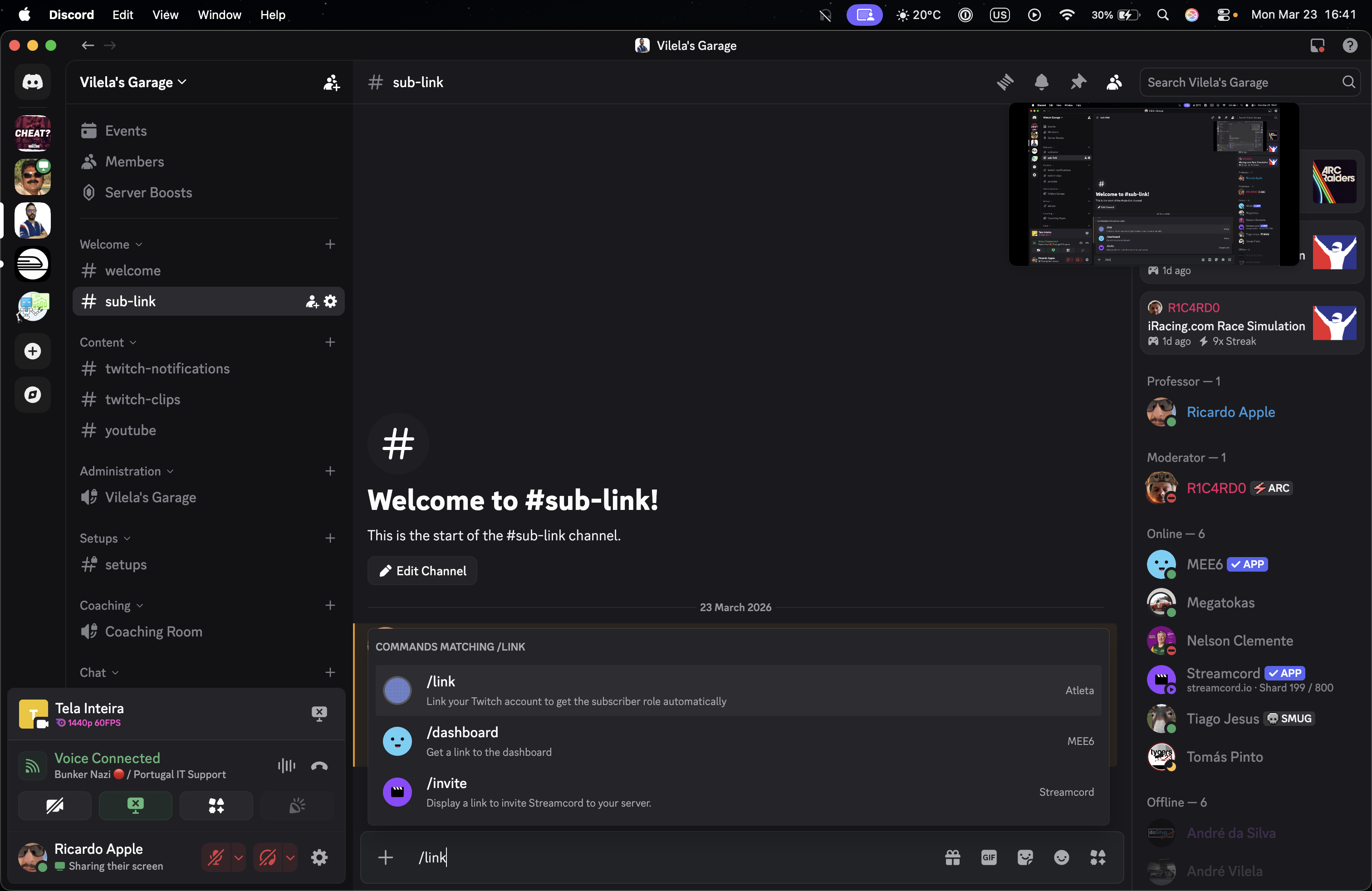
Discord showing /link command in a channel
The bot checks every 10 minutes and assigns or removes the role automatically. Subscribers need to use /link once to connect their Twitch and Discord accounts.

Ready to get started?

The whole setup takes about 5 minutes.

Log in with Discord